On this page
Eight steps, one screen at a time
Each step shows the real screen, a live widget or a spotlight. A deployment runs on the server every trading day until you pause or remove it, even with this page closed.
-
Dashboard → Deployed. Sample data. 1Open the Deployed tab
One card per strategy. The summary tiles (P&L Today, Overall P&L, Premium Sold, Value, Delta / Vega, Theta / Day) total only the cards shown, so a filter changes them. Status pills group cards into Live, Waiting, Error, Paused and Exited.
Click Deployed in the top row.
Why / details
P&L Today is gross; hover it for the net figure including charges. The toolbar has instrument scope, Search deployed… (name, index, broker, expiry or a strike), Filter, ◐ Classic look (display only), ↻ Refresh and ✕ Clear / Pause / Resume for bulk actions. Needs attention lists errors, blocks and broker retries, or reads "All clear".
-
A collapsed card opens into tiles, legs and a P&L footer. Sample data. 2Expand a card
Collapsed, a card shows its name, DNO (deployment number), chips for instrument, mode and expiry, the status, and today's gross P&L with a range bar. Cards start collapsed, 20 to a page.
Click ▶ on the card, or double-click its header.
Why / details
The MULT dropdown (1x to 100x) changes the multiplier from the next fresh entry; an open position is never resized. Click the DNO badge to copy "DNO 123" and quote it when you contact support.
-
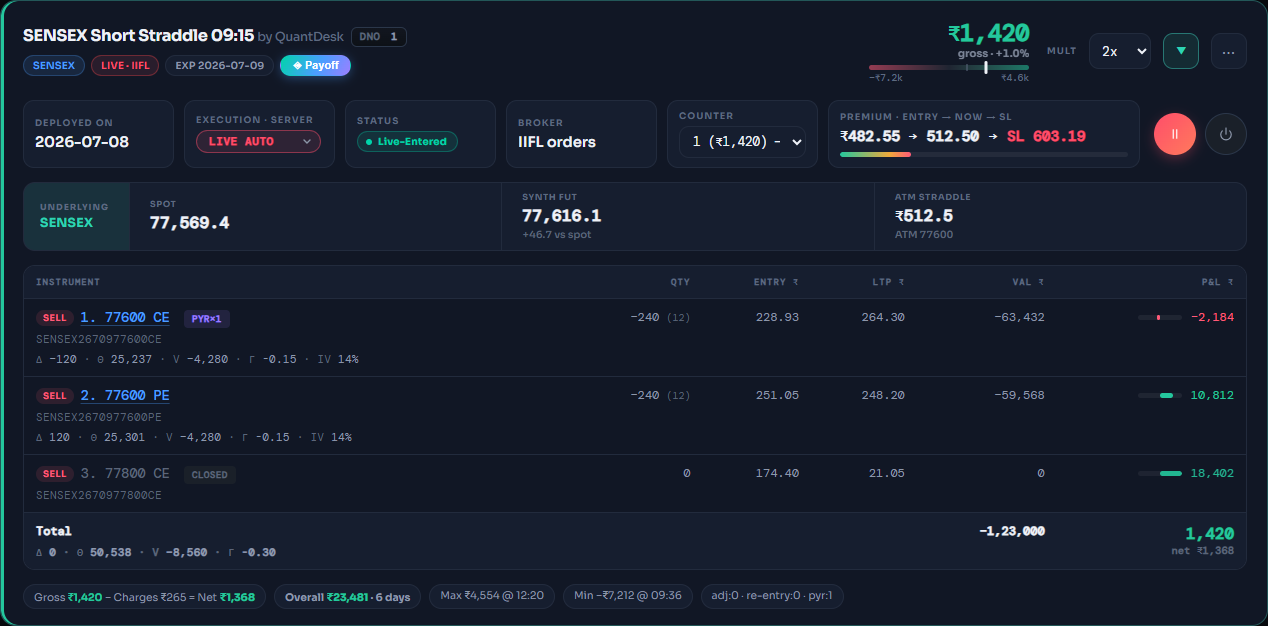
3Read the card
Watch the status move as the day runs. Chips: LIVE · IIFL, LIVE OFFLINE or PAPER. In Live Auto a leg shows only broker-confirmed lots; anything unfilled is an amber +N L pending badge.
Read Premium · Entry → Now → SL, the legs, then the footer Gross − Charges = Net.
Why / details
The headline is gross P&L, which matches your broker's trade book; net uses the desk's estimate of brokerage and statutory charges. Counter is the cycle number: pick an earlier cycle or a past day to see its legs. A 🛡 SL ₹X · broker chip means a stop-loss order is resting at your broker. Leg tags include PYR×n, ADOPTED and CLOSED.
-
 1
2
1
2
Pause and Square off sit on the right of an expanded card. Sample data. 4Know which buttons reach your broker
Pause freezes the strategy and sends nothing; the position stays open. Square off ⏻ sends real orders to close this strategy's own lots and shows Exiting · Live-Tranching until they fill. Paper and Live Offline cards never send anything.
Before any live button: check the mode chip on the card.
Every control and what it sends
- Resume ▶ re-checks conditions now; enters if they say so.
- MULT, Edit Parameters (live), Add running position — nothing is sent.
- LIVE AUTO → LIVE OFFLINE cancels working orders and resting stop-losses once, then mutes.
- LIVE OFFLINE → LIVE AUTO is a full take-over: match your broker by hand first; the desk does not check.
- ↻ Reactivate (new cycle) starts a fresh cycle that enters only inside the entry window.
- Archive (keep 7 days) squares off first. Delete permanently closes nothing; it only cancels its own working and resting orders.
- Exit All (Dashboard) and ✕ Clear (toolbar) square off every strategy in scope.
- Indian closes are marketable limits that start about 2% through the live price and widen 1% every 3 seconds up to 20%. Never a plain market order.
- Pausing a positional strategy cancels its resting broker stop-loss: while paused there is no stop-loss.
-
The ⋯ menu: every tool for one deployment. Sample data. 5Open the ⋯ menu
Edit Parameters (live), Execution Settings (live), Definition, Positions (fills), Payoff & Risk, Runtime Values, Notification Log, Intraday PNL, Statistics, Order Book (broker), Download Data (CSV), Archive and Delete.
Click ⋯ on the card.
Why / details
Edit Parameters (live) applies from the next tick to anything not yet hit and also updates the saved strategy; the open position never changes. Notification Log is every event in plain English with search and CSV. A strategy you follow from a creator shows "📡 Subscribed — parameters are managed by the creator" instead of the edit items.
-
Today's broker orders for this strategy, newest first. Sample orders. 6Read the Order Book
Live cards only. One row per broker order with Time, Status (QUEUED → OPEN → DONE), Limit, Fill (the broker's real average) and a Note with the last error.
Choose Order Book (broker), or click the N orders live badge.
Why / details
Every status, what triggers it and what to do is in Every LiveDesk order and strategy status.
-
7Clear pending lots
A +N L pending badge means fewer broker-confirmed lots than intended. The desk retries every 20 seconds, then every 90 seconds after 3 quick tries, crossing the spread up to a 20% cap. ↻ Fill now places the missing lots immediately. ✕ Waive stops auto-filling.
Click the +N L pending badge, or Review → on the Dashboard banner.
Why / details
✓ Mark completed manually sends no order. Use it only after you filled those lots at your broker yourself; the desk books them at the current price. A red STUCK tag means an order sat at its price cap for 60 seconds or had no live price for 30 seconds; you get one alert and it keeps working.
-
 1
2
3
1
2
3
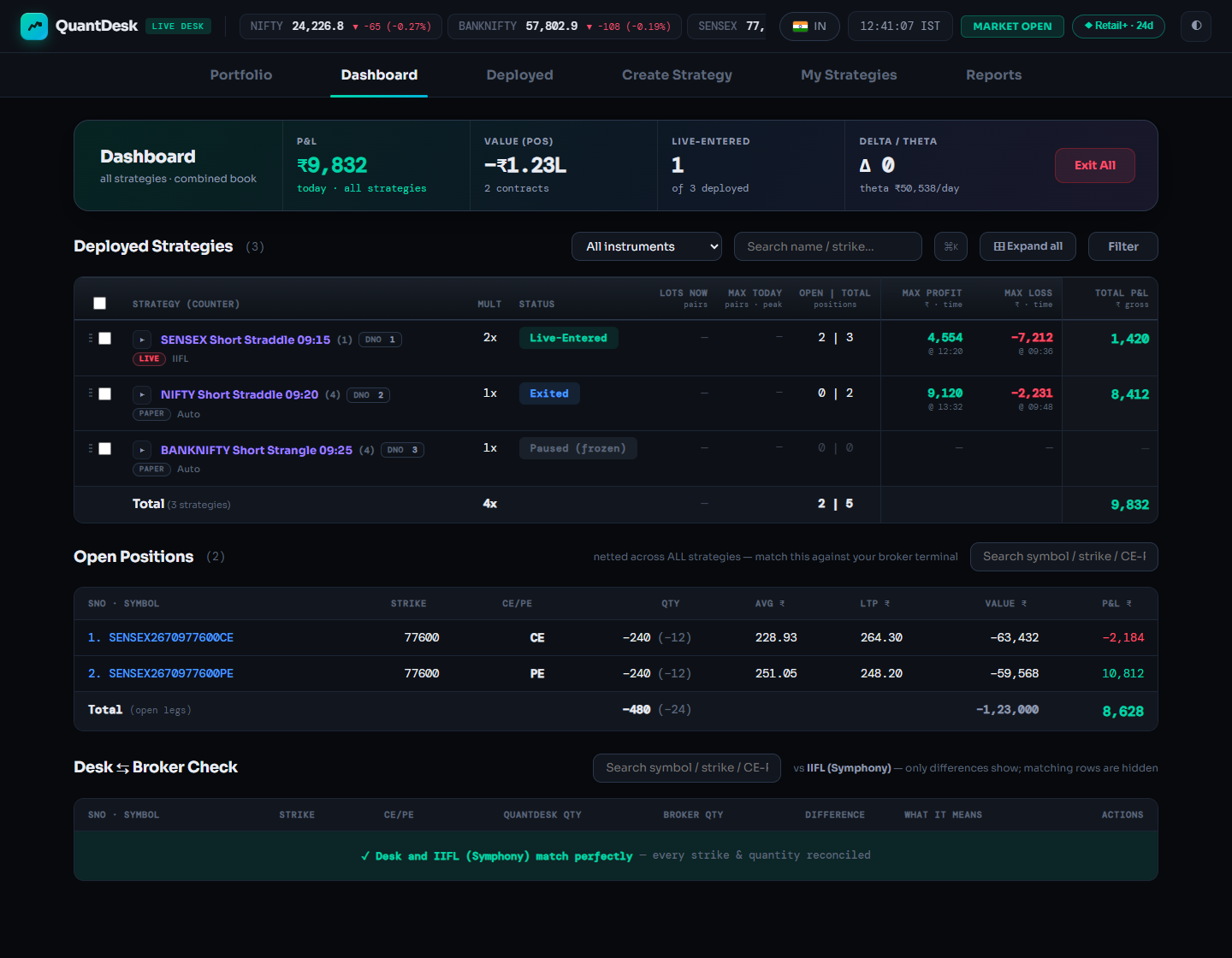
Dashboard with everything reconciled. Sample data. 8Check the desk against your broker
The Dashboard is the whole account: every strategy in one table, Open Positions netted across them, and at the bottom the Desk ⇆ Broker Check, which lists only differences. All matched reads "Desk and your broker match perfectly".
Click Dashboard, scroll to the bottom. Ctrl+K jumps to any strategy.
Why / details
- at broker only a manual trade the desk does not manage.
- qty mismatch a partial fill or manual change; Match records the broker's quantity and sends no order.
- MISSING AT BROKER reconcile now.
- outside the desk extra lots placed elsewhere; never touched.
The server repeats this check every 90 seconds; a mismatch lasting about 3 minutes sends a "⚠ POSITION MISMATCH" Telegram. Tick rows in the table for bulk Pause, Resume, Exit, Reactivate, Archive or Delete.
What can go wrong
- Exiting · Live-Tranching for minutes
Check your broker's order book. After 3 minutes a red Stop waiting chip appears: it marks the strategy exited on the desk and cancels its working closes. Anything still open is yours to close.
- Error after an exit
The exit could not be confirmed flat, or a close FAILED. Check the broker and the Notification Log; it clears by itself within about 20 seconds once its own orders verify flat.
- ⚠ Broker: … retrying automatically
Fix the cause at your broker, often margin or limits. A protective close is never abandoned.
- 🔒 BLOCKED
Over your plan's live limit, or the plan ended. Only applied while flat. Upgrade, or delete another live strategy, and it unblocks by itself.
- Dropdown or bulk action will not run
Orders are mid-flight (Live-Tranching). Wait for them to complete, then try again.
- Every intraday card reads Exited in the evening
Display only, after 15:41 IST (NSE/BSE) or 23:45 IST (MCX). The Notification Log has the real outcome.
Frequently asked questions
Does Pause close my position?
No. Pause freezes the strategy and sends nothing to your broker; the position stays open. One exception: a positional strategy with a stop-loss resting at the broker has that stop-loss cancelled while paused.
What is the difference between Square off and Exit All?
Square off closes one strategy. Exit All on the Dashboard squares off every strategy in a position. Both close only each strategy's own broker-confirmed lots and leave the deployments active for tomorrow.
Should I Archive or Delete a strategy I no longer want?
Archive squares off first, then hides the strategy for 7 days. Delete removes it at once and sends nothing to close: open positions stay at your broker. If it holds a position, Archive is the safer choice.
Do my strategies keep running if I close the browser?
Yes. A deployment runs on the server every trading day until you pause or remove it. Entries, stop-losses, adjustments, re-entries and square-off all happen with the page closed.
Will LiveDesk ever close lots I placed by hand on the same strike?
No. Every close uses only that strategy's own broker-confirmed lots. Lots you placed manually, or through another platform, show as outside the desk in the Desk ⇆ Broker Check and are never touched.
Related guides
Connect your broker to LiveDesk
Every field for IIFL, Nirmal Bang, Sachdeva, Kotak Neo and Tradier, plus Reactivate and Telegram alerts.
Reports and Portfolio, explained
Your track record by book, period and strategy, exports, and your demat holdings.