On this page
Seven steps, paper first
The first five steps deploy on Paper, which is free and sends nothing anywhere. Steps six and seven go live.
-
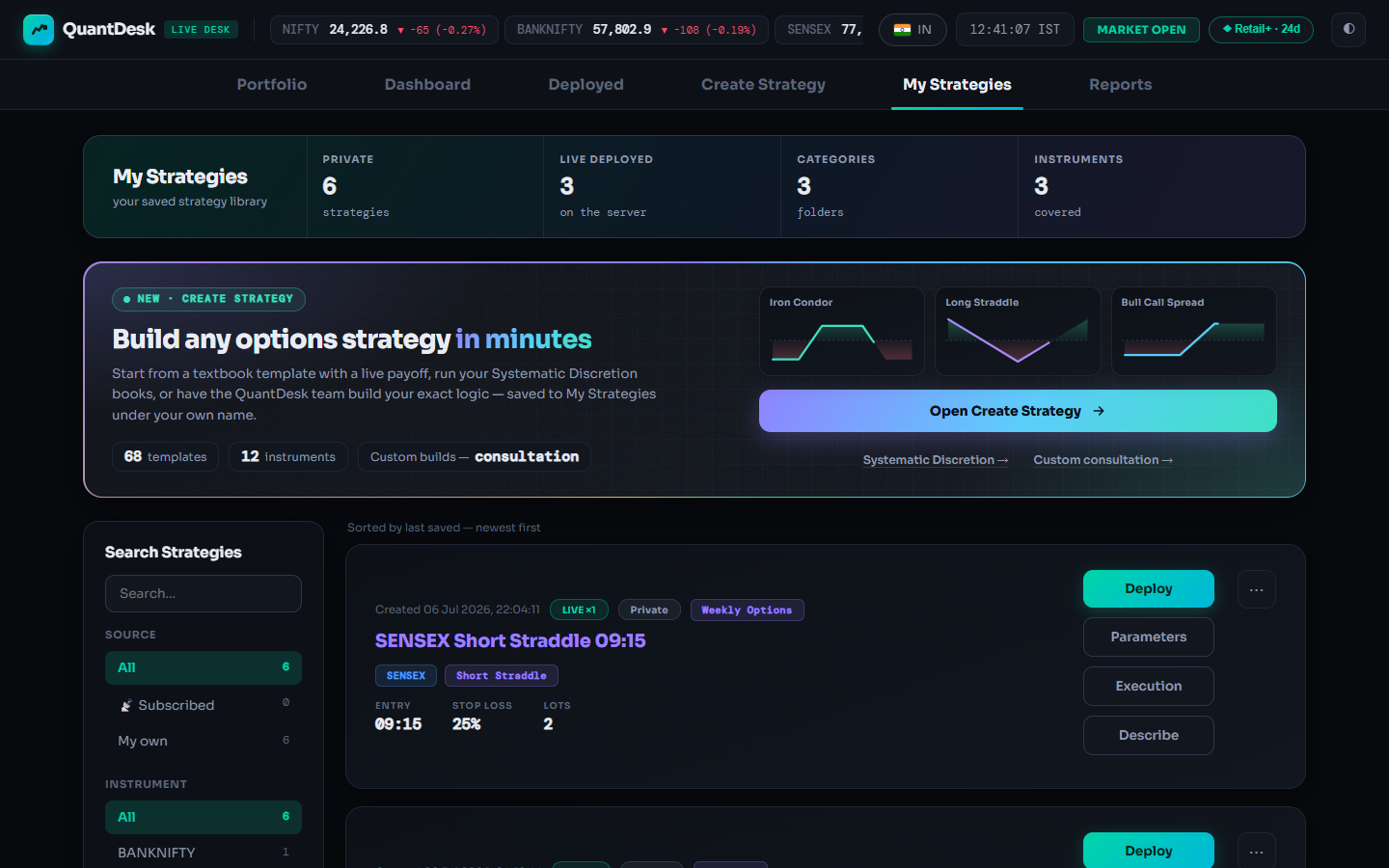
Deploy on a My Strategies card. Sample strategies. 1Open the Deploy popup
From My Strategies the strategy is already picked for you. + Deploy Strategy on the Deployed tab, Deploy now after saving a template, and Deploy on a Discretion book open the same popup.
Click Deploy on the strategy's card.
-
Multiplier 1x, Paper Trading, pick the row. Sample names. 2Multiplier 1x, Paper Trading, pick the strategy
At 1x the strategy trades exactly the lots you saved. Paper Trading is the default and shows no broker field. Type in filter… or click a row; each row shows instrument, type, entry time, stop-loss and lots.
Leave Multiplier at 1x, keep Execution Type on Paper Trading, click your strategy.
Why / details
The multiplier scales every leg's lots and every rupee figure: day caps, cooldown levels, trailing-lock figures and a Discretion book's stop-loss and target. You can change it later from the card (1x to 100x); the change applies from the next fresh entry and never resizes an open position. Adopted positions are never multiplied.
-
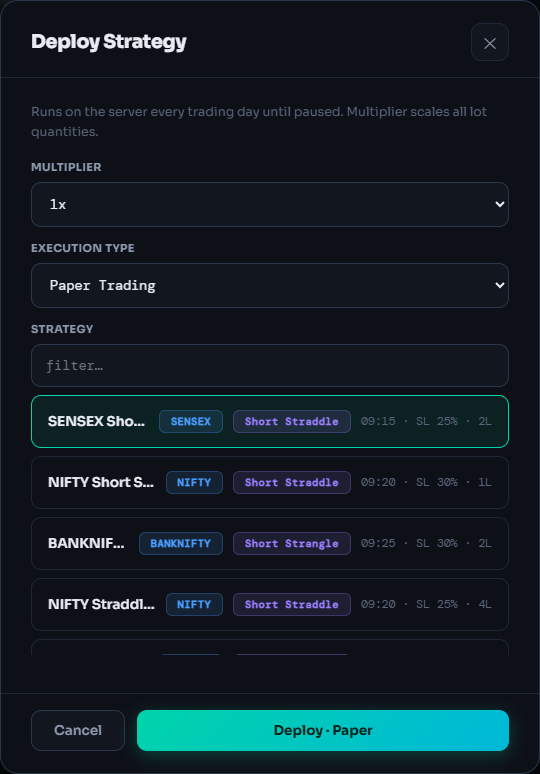
A ready paper deploy: teal button, no warning. Sample names. 3Click Deploy · Paper
The popup itself is the confirmation; it deploys at once and LiveDesk opens the Deployed tab. Nothing reaches any broker, and you need no broker, static IP or plan.
Click Deploy · Paper.
-
4Check the new card
Your card shows PAPER and Waiting → 09:20:00 until its entry time, then Live-Entered. Paper fills at the engine's price plus the strategy's slippage setting.
Find the card on Deployed; expanded, its Execution field reads PAPER AUTO.
Why / details
A free account runs 1 paper strategy at a time per market (India, MCX and US counted separately), or 3 once a broker has connected through its static IP (Tradier needs none). Pressing Deploy with the free slot in use opens Unlock 3 paper strategies instead: get your static IP, add and connect a broker, and the extra slots unlock by themselves. Running strategies are never stopped by these limits.
-
The unlock guide on a free account. Illustrative. 5Before going live: three requirements
A broker showing Active on the Brokers page; an active plan for that market (India covers NSE/BSE index options and equity, MCX has its own plan, so does the US desk); and a free live slot. Paused strategies still use a slot.
Check Brokers and the plan chip in the top bar.
Why / details
India brokers need a dedicated static IP from QuantDesk: see Buy a static IP and Connect your broker. "LiveDesk plan needed" or "Live slots full" means buy or renew, or delete a deployment you no longer need. An expired plan never squares off an open position; the strategy is blocked only once flat.
-
Live Auto → broker → red warning → Deploy · LIVE (IIFL). Sample names. 6Go live: Live Auto, broker, Deploy · LIVE
Choosing Live Auto — real broker orders shows the Broker field and the warning "⚠ REAL orders will be placed via your broker for every signal". A broker marked "— inactive, Reactivate first" cannot be picked. The button names the broker and deploys at once.
Set Execution Type → Live Auto, pick the Broker, click Deploy · LIVE (IIFL).
Why / details
The card shows LIVE · IIFL, then Live Tranching at entry until every fill confirms. Live P&L uses the broker's real average fills and only broker-confirmed lots. On Indian brokers "Market" is a protective limit that starts 2% through the live price and widens 1% every 3 seconds up to 20%, never a plain market order.
-
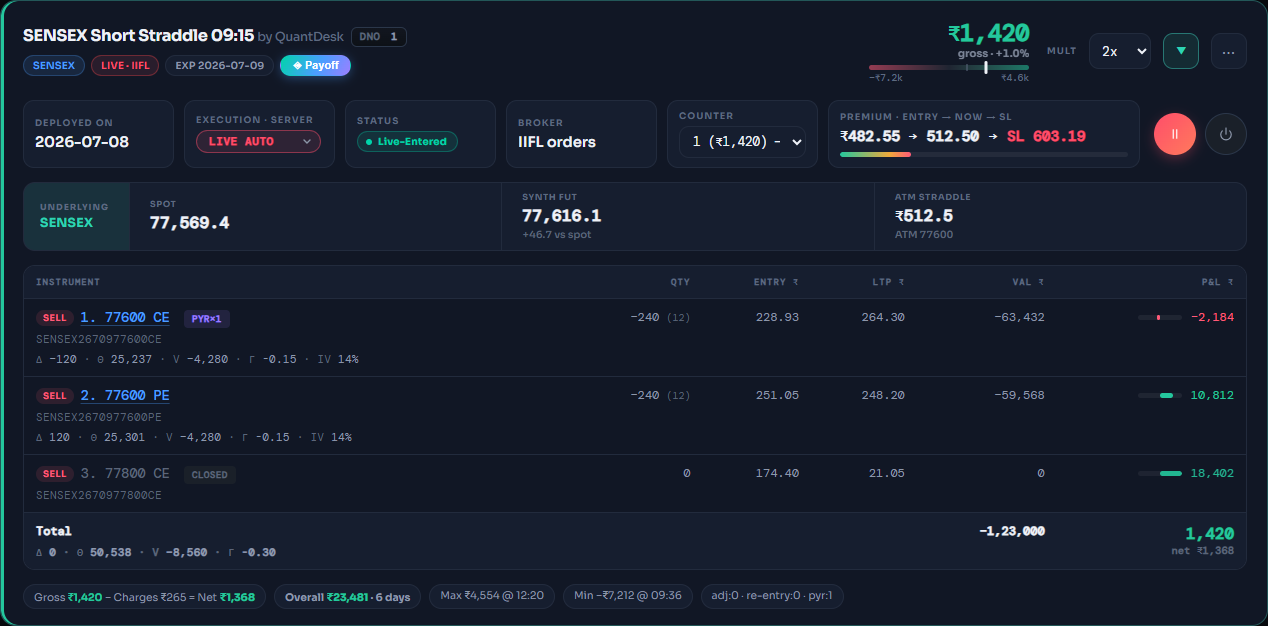
Execution · server: LIVE AUTO or LIVE OFFLINE. Illustrative P&L. 7Live Offline: run live, send nothing
Live Offline — broker bound, orders muted runs the full engine on a live slot but sends nothing; you mirror trades yourself. On a running card, the Execution · server dropdown switches modes and asks you to confirm with Mute Broker or Go Live.
Expand the card → Execution · server → LIVE OFFLINE or LIVE AUTO.
Why / details
To LIVE OFFLINE: working orders and resting stop-losses are cancelled at the broker once; any real position stays open for you to manage. To LIVE AUTO: every trade from that second is real and the desk manages every lot on its book as its own, without checking your broker first, so match your broker positions by hand before you switch. Switching is locked while orders are mid-flight; going back to Live Auto needs an active plan.
The three modes side by side
| Paper Trading | Live Auto | Live Offline | |
|---|---|---|---|
Orders to your broker | None | Real orders | None (muted) |
Fills | Simulated | Your broker's real fills | Simulated by the engine |
Broker needed | No | Yes | Yes |
Plan | Free | Uses a live slot | Uses a live slot |
Reports | Paper book | Live Auto book | Live Offline book, never mixed into Live Auto |
Card chip | PAPER | LIVE · IIFL | LIVE OFFLINE · IIFL |
Other messages the popup can show
- Deploy & adopt / Deploy without them: the strategy has already-open legs you said you hold. Adopting sends no order.
- "… is a US instrument — flip to US Markets to deploy it" (or the reverse): switch desks with the IN / US pill, then deploy.
- "LiveDesk plan needed", "MCX plan needed", "Live slots full": buy or renew, free a slot, or deploy on Paper.
What can go wrong
- No Entry
The entry window passed before an entry, for example you deployed after it closed. It runs again next trading day, unless its run mode is One time.
- Stays on Live Tranching
The broker has not confirmed every fill. Click the +N L pending badge to open the Pending panel and see why.
- Order Failed
A live entry order could not be placed. Read the red "Live order NOT placed: …" line in the Notification Log, then ↻ Reactivate the broker or fix the setting it names.
- Pause and Delete do not close positions
Pause freezes and sends nothing (on a positional strategy it also cancels the resting broker stop-loss). Delete permanently closes nothing. Use Square off first if you want to be flat.
Frequently asked questions
Do I need to keep LiveDesk open after I deploy?
No. A deployment runs on QuantDesk's server every trading day until you pause or remove it. Entries, stop-losses, adjustments, re-entries and square-off happen with your browser closed.
Is Paper Trading really free?
Yes. Paper runs the full engine on live market prices with simulated fills and sends nothing to any broker. A free account runs 1 paper strategy at a time per market, or 3 once a broker is connected.
Does Live Offline need a plan?
Live Offline is bound to a broker and counts as live for plan limits, so it uses one of your plan's live slots even though it sends no orders.
What happens if my plan expires while a live strategy holds a position?
An expired plan never squares off an open position. The strategy keeps managing it and is blocked only once it is flat. Renewing unblocks it.
Why is my live P&L different from paper?
Live P&L uses your broker's real average fill prices and counts only broker-confirmed lots. Paper fills at the engine's price plus the strategy's slippage setting.
Related guides
Buy a static IP for your broker
Why Indian brokers need one, how to buy it inside LiveDesk, register it at your broker and keep it renewed.
Every LiveDesk order and strategy status
Tap any chip: what it means, whether anything reached your broker, and what to do.