On this page
- Sign inContinue with Google
- Static IPIndia brokers only
- Connect brokerYou are here
- DeployPaper first
Add your broker, in eight steps
No plan is needed to connect. On the India desk, buy and register your static IP first (guide).
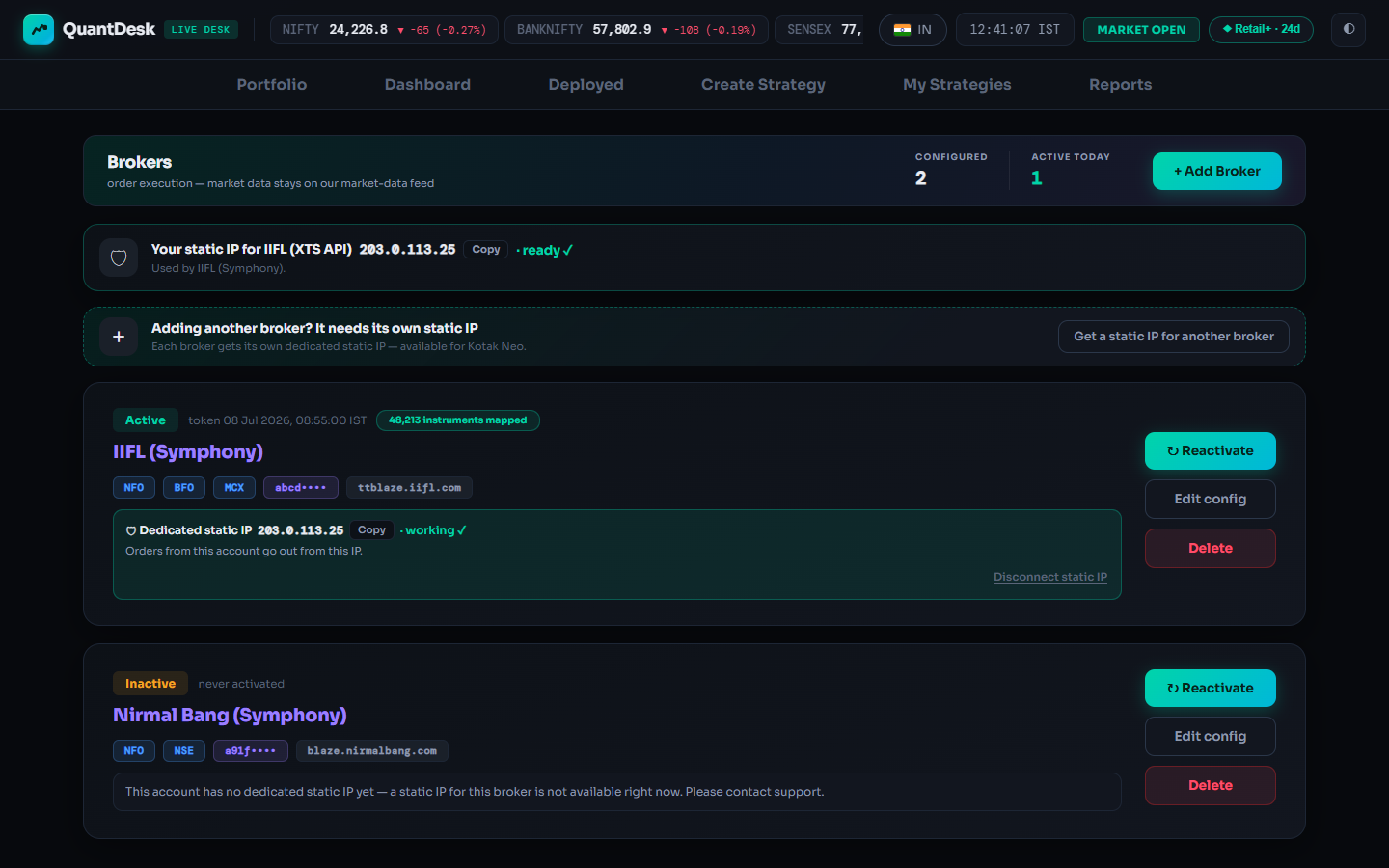
Open Brokers and press + Add Broker
Account chip (top right) → Brokers. The header counts Configured and Active today. Without a static IP on the India desk, the buy window opens first (“Step 1 of 2”).
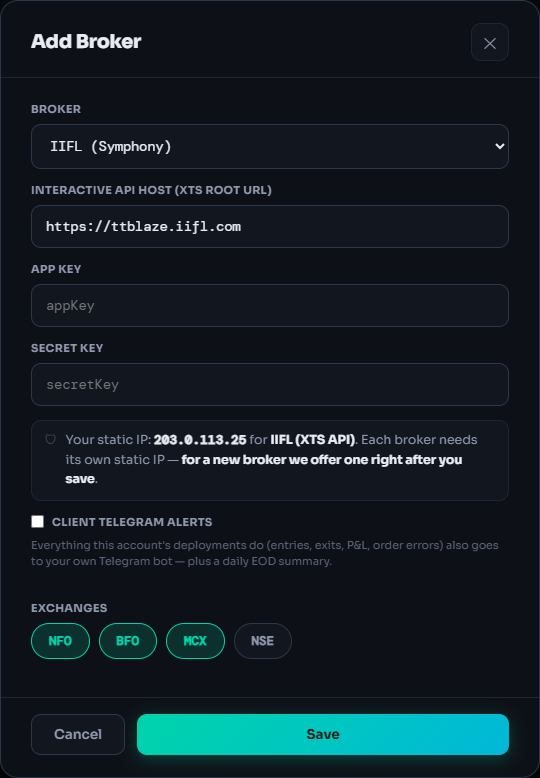
Click + Add Broker
Choose the broker
IIFL (Symphony), Nirmal Bang (Symphony), Sachdeva Stocks Retail (Symphony) or Kotak Neo; Tradier appears only on the US desk. The fields change to match. Already-added brokers are greyed “— already added”.
Pick your broker in Broker
Paste the keys (Symphony brokers)
Leave the pre-filled API host. Paste the App Key and Secret Key of the API app you created at your broker, the one registered with your static IP.
Kotak Neo asks for more
Access Token, MPIN, Mobile (+91), Client Code (UCC), TOTP Key and MCX order quantity. Each field is spotlighted below.
Check the static-IP line
One sentence names the IP this account will use. Each broker needs its own IP; a new broker is connected to it automatically when you save.
Client Telegram alerts (optional)
Tick it to get this account's entries, exits, fills, order errors and a daily summary on your own bot: Client Bot Token (from @BotFather), Chat ID, EOD summary time (default 15:45; 23:40 for MCX evenings). Live deployments only; paper sends nothing.
Testing the bot
Press Start on your bot in Telegram once. Then reopen the account with Edit config and press Send test message (shown only when editing).
Pick the exchanges
NFO (NSE index options), BFO (BSE, e.g. SENSEX), MCX (commodities), NSE (stocks). Each broker starts with defaults; keep the ones your strategies trade.
Save, then check the card
“Broker added — connecting it to your static IP…”. The card should show Active, the token time, “N instruments mapped” and “Dedicated static IP … working ✓”. If not, press Reactivate: it starts a fresh session and downloads today's instruments.
Click Save
What changes after you connect
- Free paper limit rises from 1 to 3 per market, by itself.
- The broker appears under Broker in the Deploy window for Live Auto and Live Offline (a plan is still needed).
- Dashboard gets a Broker Margin card (refreshed every 60 s) and the Desk ⇆ Broker Check.
- Portfolio (India) shows your demat holdings, view only.
Every field, per broker
Pick your broker. Field names match the form exactly.
Broker
IIFL (Symphony), Nirmal Bang (Symphony) or Sachdeva Stocks Retail (Symphony). Defaults: IIFL NFO · BFO · MCX; Nirmal Bang NFO · NSE; Sachdeva NFO · MCX · NSE.
Interactive API host
Pre-filled with the broker's API address. Leave it as it is.
App Key
The app key of your broker API app. Sachdeva: ask the helpdesk to whitelist your static IP against this key before you save.
Secret Key
The secret of the same app. Never shown back after saving; leave it blank on Edit config to keep it.
Nirmal Bang and the static IP
A static IP for Nirmal Bang is “not available right now — please contact support” at the time of writing. Email support@kartapurakh.com before planning live trading on it.
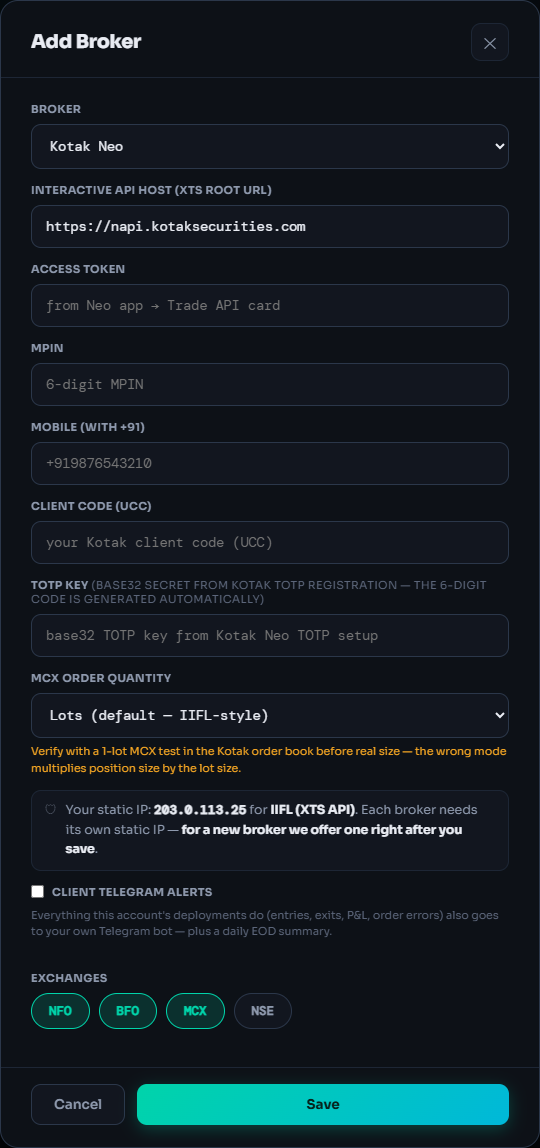
Access Token
From the Neo app → Trade API card.
MPIN
Your 6-digit MPIN.
Mobile (with +91)
Your registered mobile number, starting with +91.
Client Code (UCC)
Your Kotak client code.
TOTP Key
The base32 secret from Kotak's TOTP registration. LiveDesk generates the 6-digit code automatically.
MCX order quantity
Lots (default) or Units. “Verify with a 1-lot MCX test in the Kotak order book before real size — the wrong mode multiplies position size by the lot size.”
Static IP
Register it as the static IP for your Trade API in your Kotak Neo account, where the Trade API (consumer key) is managed. Defaults: NFO · BFO · MCX.
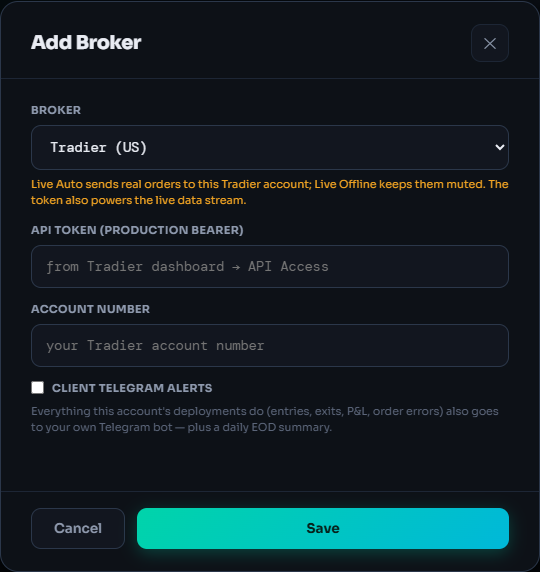
Switch to the US desk first
Click the IN pill, confirm Switch, then Brokers → + Add Broker. Tradier is the only broker there. No static IP is needed.
API Token (production Bearer)
From your Tradier dashboard → API Access. Live Auto sends real orders to this account; Live Offline keeps them muted.
Account Number
Your Tradier account number. Host and exchanges are set for you. Opening orders above 50 contracts are refused before they are sent; closing orders are never blocked.
What the card status means
- ActiveLogged in for today with instruments mapped. Ready for orders.
- InactiveSaved, no working session. Press Reactivate.
- never activatedNever connected. Check its static IP and keys, then Reactivate.
- ErrorThe last login failed. Fix the keys with Edit config, then Reactivate.
One connection per broker: to change the account or keys, use Edit config rather than adding it again. Delete needs that broker's live deployments stopped first.
What can go wrong
- “— already added”One connection per broker. Use Edit config on the existing card.
- Stays InactivePress Reactivate. Still not Active? Check the IP shows “working ✓”, the broker confirmed the registration, and the keys belong to that app.
- Live orders rejectedUsually an IP the broker hasn't registered, or registered against another app key. Nothing fills until it is fixed.
- Order Failed on a strategyA live opening order couldn't be placed, e.g. the instrument isn't in today's list. Read the red journal line, press Reactivate, check again.
- Telegram test doesn't arrivePress Start on your bot, check token and Chat ID, send again. Only live deployments send alerts.
- No Tradier in the listTradier is offered only on the US desk. Click the IN pill and Switch.
Frequently asked questions
Do I need a paid plan to connect a broker?
No. Connecting is free and raises a free account's paper limit from 1 to 3 per market. A plan for that market is needed only when you deploy live (Live Auto or Live Offline).
Can I connect two accounts at the same broker?
No. One connection per broker. IIFL, Kotak Neo and Sachdeva side by side is fine; two IIFL accounts is not. Use Edit config on the card to change keys.
Can anyone see my secret keys after I save them?
Secrets are never shown back. When you edit a broker, a field left blank keeps its saved value.
Does QuantDesk hold my money?
No. Orders go through your own broker's API with your credentials. Your funds stay in your broker account.
Will LiveDesk close trades I placed myself?
No. A strategy's exits use only the lots it bought or sold and the broker confirmed. Manual trades on the same strike are never closed by it.
Related guides
Deployed tab and Dashboard, explained
Every card control and what it sends to your broker, the Pending panel and the Desk ⇆ Broker Check.
Every LiveDesk order and strategy status
What every card chip and Order Book status means, whether anything reached your broker, and what to do.