On this page
Your first eleven steps
Each step shows the real screen. Paper trading is free and sends nothing to any broker, so nothing here puts money at risk.
Open kartapurakh.com/livedesk
Signed out, you see the LiveDesk landing page: “Your strategy. Your broker. Executed like a desk.”
Press Sign in to LiveDesk at the top of this site
Continue with Google
“New here? Continuing with Google creates your account.” Email and password sign-in exists only for accounts that already have a password.
Click Continue with Google
Land on your desk
The Dashboard opens. On a new account its tables are empty and Deployed reads “No deployed strategies yet.”
What is already in your account
24 locked Discretion books (an Intraday and a Positional book for each of 12 instruments) under Create Strategy → Systematic Discretion, plus an empty Equity Portfolio book. Locked books show “🔒 Base”: edit or duplicate them, never rename or delete. Your saved-strategy library has no limit on any plan.
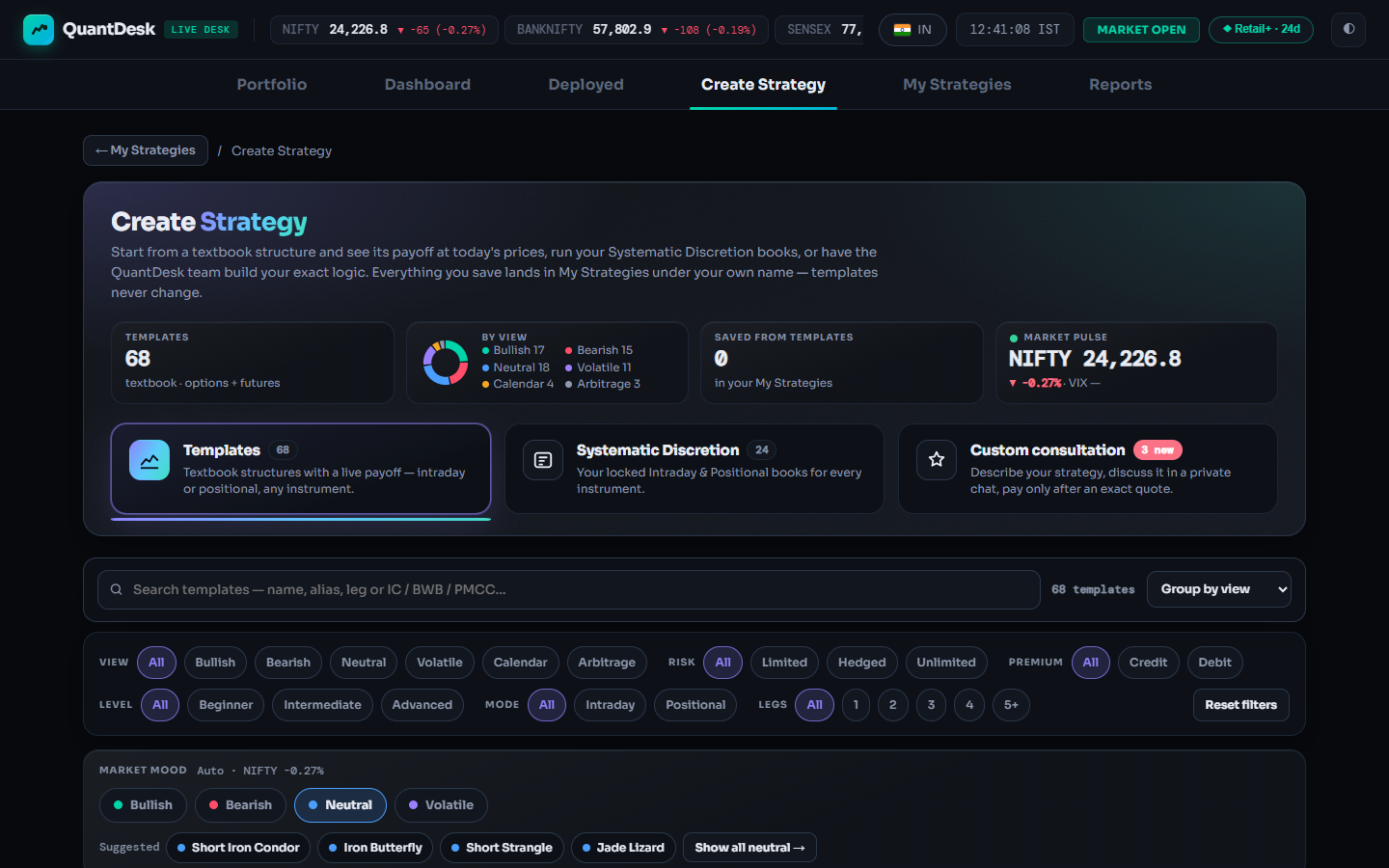
Read the top bar
Logo (home) · NIFTY, BANKNIFTY and SENSEX with day change · the IN / US pill · a server-anchored clock with MARKET OPEN / CLOSED.
Plan chip, theme and account menu
Your plan and days left (or Upgrade Now), ◐ for light/dark, then your account chip. Its menu holds Brokers, Settings, Subscription, Plans & Upgrade and Sign out. There is no Brokers tab.
Add a password (optional)
Settings → “Security — sign-in password” → type a password of 8+ characters twice → Set Password. The account then also works with email and password. There is no reset flow, so keep Google as your main way in.
The tab row
Portfolio (demat holdings, view only) · Dashboard (whole account) · Deployed (one card per running strategy) · Create Strategy · My Strategies (your library) · Reports (track record, exports). Browser Back and Forward move between them.
Click Create Strategy
Save a template as your own
Click any card, say Bull Call Spread. Pick the Instrument, Intraday or Positional, and Lots ×; the payoff updates as you go. Name it (3–80 characters, unique) or press Suggest.
Click Save as my strategy, then Deploy now
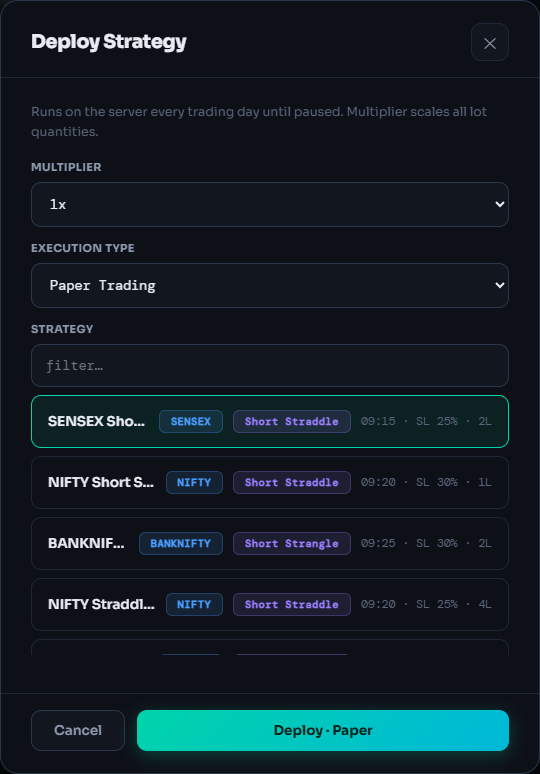
Deploy it on paper
Keep Multiplier at 1x and Execution Type on Paper Trading. The full engine runs on live prices with simulated fills.
Click Deploy · Paper
Watch it run
LiveDesk jumps to Deployed. The card shows PAPER, Waiting → 09:20:00 until its entry time, then Live-Entered. It runs every trading day until you pause or remove it.
Ask LiveDesk, and the command palette
The bottom-right button is a free keyword helper (not AI) that answers from your own deployments: give it a DNO, then ask about P&L, positions, orders or status. Ctrl+K jumps to any strategy, strike, DNO or page.
Switching to the US desk
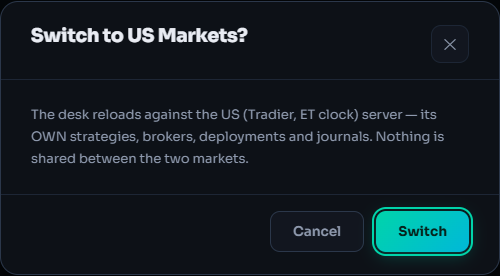
Trading SPX or SPY? Click the IN pill and confirm Switch. The desk reloads against the US server with its own strategies, brokers, deployments and plans, an ET clock and the tabs Dashboard · Deployed · My Strategies · Reports.
What the card will say
What can go wrong
- No email sign-upNew accounts are Google only. Press Continue with Google; add a password later in Settings.
- Forgot passwordNo reset flow. Use Continue with Google, or email support@kartapurakh.com from your account's address.
- Link opened the DashboardIn-app links work only when signed in. Sign in, then open the item again.
- MARKET CLOSED on a weekdayProbably an exchange holiday. The desk behaves like a weekend: nothing runs, nothing is sent.
- “Unlock 3 paper strategies”Free accounts run 1 paper strategy per market. Stop the running one, or connect a broker to run 3.
- Clock says ET, strategies goneYou are on the US desk. Click the US pill and Switch back.
Frequently asked questions
How do I create a LiveDesk account?
Open kartapurakh.com/livedesk and press Continue with Google. That creates your account. Email and password sign-in is kept for existing accounts only.
Is my LiveDesk account the same as my Backtest account?
Yes. One Google account works for both. Backtest is used from your AI assistant (sign in at kartapurakh.com/quantdesk-upgrade); LiveDesk runs in the browser at kartapurakh.com/livedesk.
I forgot my password. How do I reset it?
There is no password-reset flow. If your account uses Google, press Continue with Google. Otherwise email support@kartapurakh.com from the address on your account.
Where is the Brokers page?
In the account menu, not the tab row. Click your account chip at the top right (the first part of your email) and choose Brokers.
How do I get to the US desk?
Click the IN pill in the top bar and confirm Switch. LiveDesk reloads against the separate US desk, with its own strategies, brokers, deployments and plans.
Related guides
Create a strategy from a template
Pick one of 68 textbook structures, check its live payoff and save it as your own strategy.
Buy a static IP for your broker
Why Indian brokers need one, how to buy it inside LiveDesk, register it at your broker and keep it renewed.