On this page
- Sign inContinue with Google
- Static IPYou are here
- Connect brokerAPI key + Save
- DeployPaper first
Buy and register it, in ten steps
US desk only? Skip this guide: Tradier needs no static IP.
Open the Brokers page
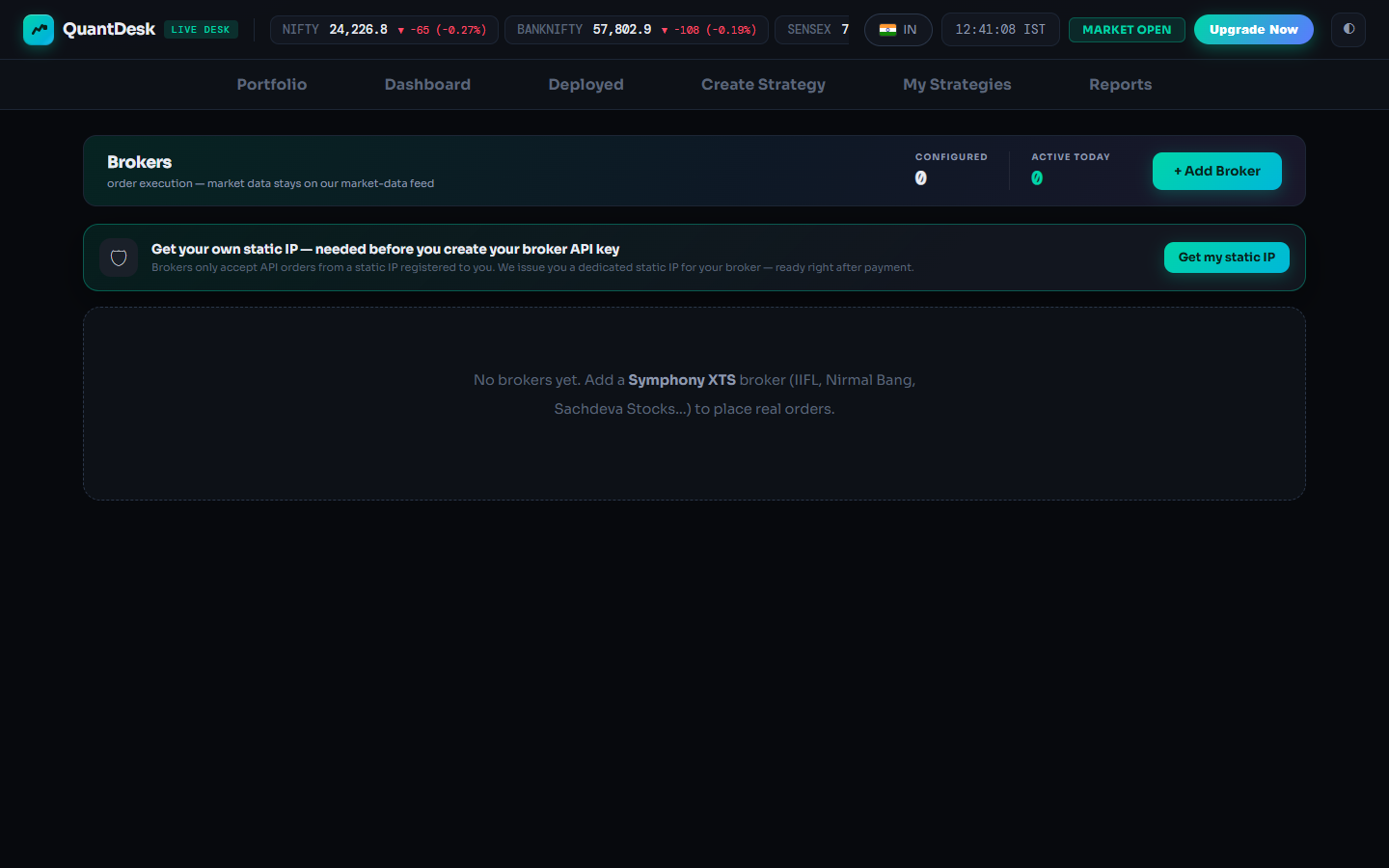
Click your account chip at the top right (the first part of your email) and choose Brokers. There is no Brokers tab. The banner reads “Get your own static IP — needed before you create your broker API key”.
Account menu → Brokers
Press Get my static IP
+ Add Broker opens the same window while you have no IP, headed “Step 1 of 2 — get your static IP. Step 2 — create your broker API key with this IP and add the broker here.”
Click Get my static IP
Pick the broker
Under Which broker is this static IP for? each broker shows available, “you have one”, “being issued” or “not available — contact support”. One IP works with one broker only, so choose carefully.
Click your broker's card
Pick a period
1, 3 or 12 months, each showing the monthly rate, a saving badge for longer periods and the period total. Your period starts when the IP is issued, not when you pay.
Click 1, 3 or 12 months
Read the price box
One-time setup, the IP for the first period, GST, Pay now. The line under it spells out every renewal: period price + ₹50 renewal + GST. In October 2026 the first month was from about ₹649 all in.
What you get
Your own IP, used only by your accounts · Mumbai data centre · locked down, IPv4 · checked every minute · fully managed. A static IP is not a LiveDesk plan: it is a separate purchase, needs no plan, and paper trading stays free.
Pay
Pay ₹… pays the exact amount online inside LiveDesk; Not now closes without buying. Afterwards the window says “Confirming your payment…”. If that is slow, wait: “If money was deducted it is safe. Please don't pay again.”
Click Pay ₹…
Let the IP be issued
Either “Ready right after payment”, or “Payment received ✓ — issuing your static IP… usually within 2 hours (10 AM – 8 PM)”. You need not keep the page open: it updates by itself and you get a message when it is ready.
Copy your IP
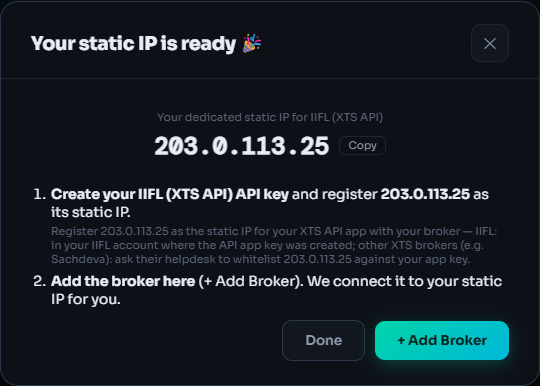
Your static IP is ready shows the address and the two things left to do.
Click Copy
Register it at your broker
Create (or open) your broker API key and register the IP as its static IP. Brokers usually confirm within minutes, sometimes up to one working day. Orders sent before that are rejected.
Where, per broker
- IIFL: in your IIFL account, where the API app key was created.
- Kotak Neo: where your Trade API (consumer key) is managed: register the IP as its static IP.
- Sachdeva Stocks: ask the helpdesk to whitelist the IP against your app key.
- Any other broker: the same place you created your API key.
Add the broker: it connects by itself
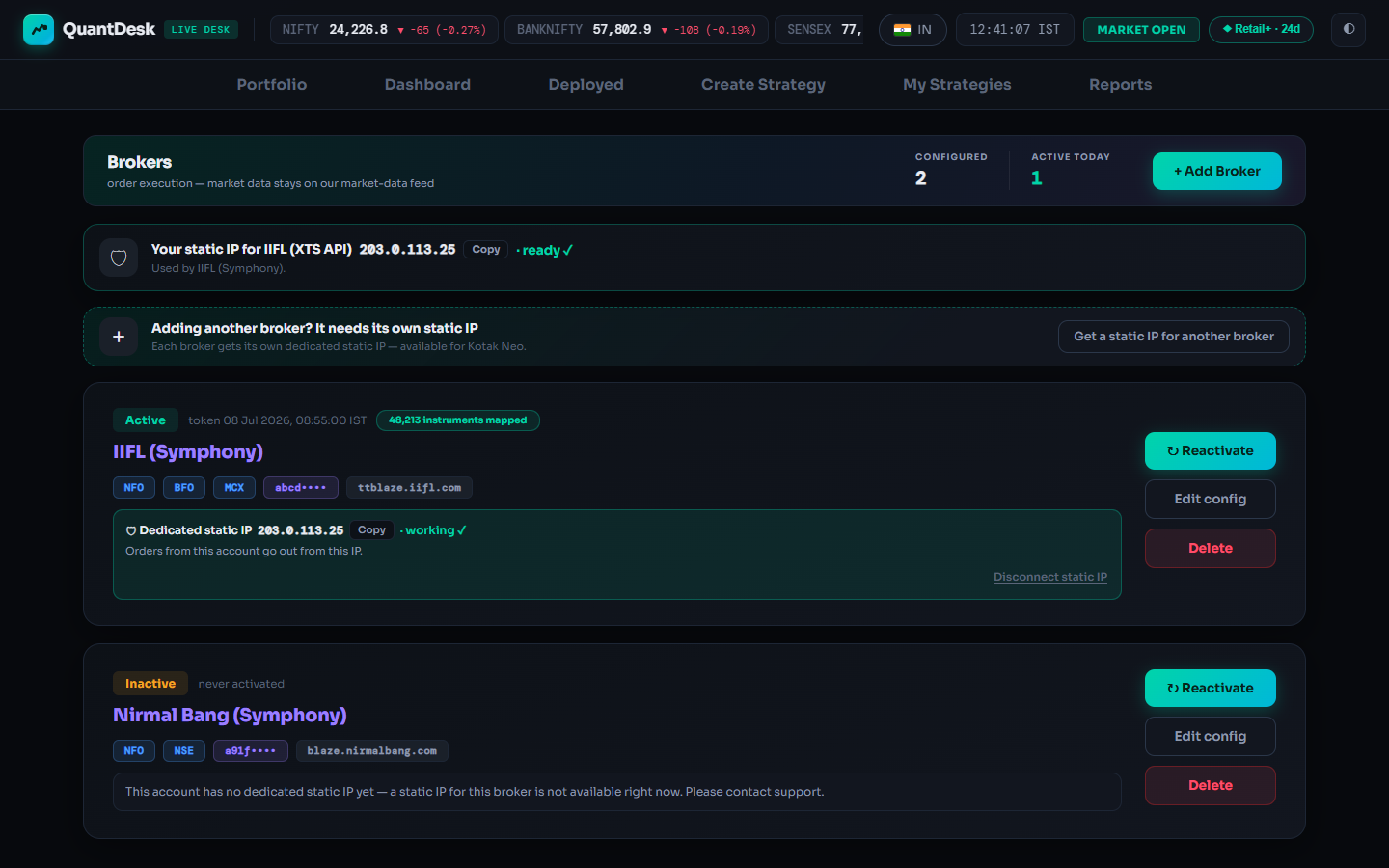
“We connect it to your static IP for you.” On Save a toast confirms: “Broker added — connecting it to your static IP…”. The Brokers page then shows ready ✓ next to your IP and working ✓ on the account. Every field, per broker, is in the next guide.
Click + Add Broker
Added the broker before buying?
Its card shows “Route this account through your static IP … — do it once <broker> has this IP registered” with Connect to my static IP. Press it, register the IP at the broker, wait for their confirmation, then I've registered it — switch now. “Switching before <broker> has it makes your orders get rejected.”
Connected: what the card says
- ready ✓Your IP is issued and healthy.
- IssuingPayment received; the IP is being set up. The page updates by itself.
- switch pendingWaiting for you to confirm the broker has registered the IP.
- working ✓Orders from this account go out from your IP. A free account now runs 3 paper strategies per market.
- Renewal dueAbout 5 days before the paid-through date the card shows “Renewal · ₹… · due by …” with Pay ₹…. Reminders at 5, 3 and 1 day. Unpaid means lapsed.
- not respondingA health check failed; orders may be rejected and the team has been alerted. Don't switch strategies to live until it is back to working ✓.
One static IP per broker
Adding a second broker? The Brokers page offers Get a static IP for another broker, which opens the same window. You can hold one connection per broker, each with its own IP. Disconnect static IP is refused while a live strategy on that account is active or paused, and disconnecting never deletes the IP.
What can go wrong
- Money deducted, no IPDon't pay again. Issuing can take about 2 hours (10 AM – 8 PM). After that, email support@kartapurakh.com with your payment details.
- “not available — contact support”No IP can be issued for that broker right now (Nirmal Bang at the time of writing). Email support before planning around it.
- Live orders rejectedThe broker hasn't registered the IP yet, or registered it against a different API key. Fix the registration; nothing live fills until then.
- Wrong broker chosenAn IP works only with the broker it was bought for. Email support; moves are done by the team.
- Paper limit still 1The broker must log in through its IP once. Press Reactivate on its card; the limit rises by itself.
Frequently asked questions
Do I need a static IP for paper trading?
No. Paper trading runs on live prices without any broker. A static IP matters when you connect an Indian broker; once it has logged in through its IP, a free account runs 3 paper strategies per market instead of 1.
Do I need a static IP for the US desk?
No. Static IPs are for Indian broker accounts only. Tradier needs none.
Can one static IP serve two brokers?
No. Each IP is locked to one broker's API. A second broker needs its own IP, bought from the Brokers page with Get a static IP for another broker.
How long does it take to get the IP?
The buy window says before you pay: ready right after payment, or usually within 2 hours (10 AM to 8 PM). Your broker then registers it, usually in minutes, sometimes up to one working day.
What happens if I don't renew?
The IP is renewed only after you pay, so an unpaid IP lapses at its expiry. Pay the renewal shown on the broker card before the due date to keep the same IP.
Related guides
Trade SPX and SPY options on the US desk
Switch to the separate US desk, connect Tradier, and run SPX and SPY strategies, 0DTE included.
Deploy on Paper, Live Auto or Live Offline
Pick a multiplier, an execution mode and a broker, and know exactly what reaches your broker in each mode.